

Description
Download Save to Google Drive – Free Chrome Extension for Quick Save, Upload & Print
Overview
When Google announced the retirement of Cloud Print in early 2021, many power users felt the loss of a reliable, built‑in way to print or upload web pages directly to their Drive. The good news is that the Chrome extension **Save to Google Drive** fills that gap with a modern, free‑of‑charge solution. This utility lets you capture almost any web content—PDFs, images, HTML5 audio or video, even screen captures—and instantly push it to your Google Drive folder of choice. It also integrates with Chrome’s native print dialog, adding a “Save to Drive” destination that behaves like a virtual printer. Whether you need to archive research articles, back up receipts, or convert a Microsoft Office file to a Google Docs format, Save to Google Drive offers a one‑click workflow that keeps your cloud storage organized and instantly accessible from any device. While the extension cannot access chrome:// URLs or Chrome Web Store pages due to security restrictions, it more than compensates with a robust feature set that restores the convenience of the old Cloud Print era and adds new capabilities for today’s hybrid work environments.
Key Features
- One‑click “Save to Drive” button appears in Chrome’s print dialog, acting as a virtual printer.
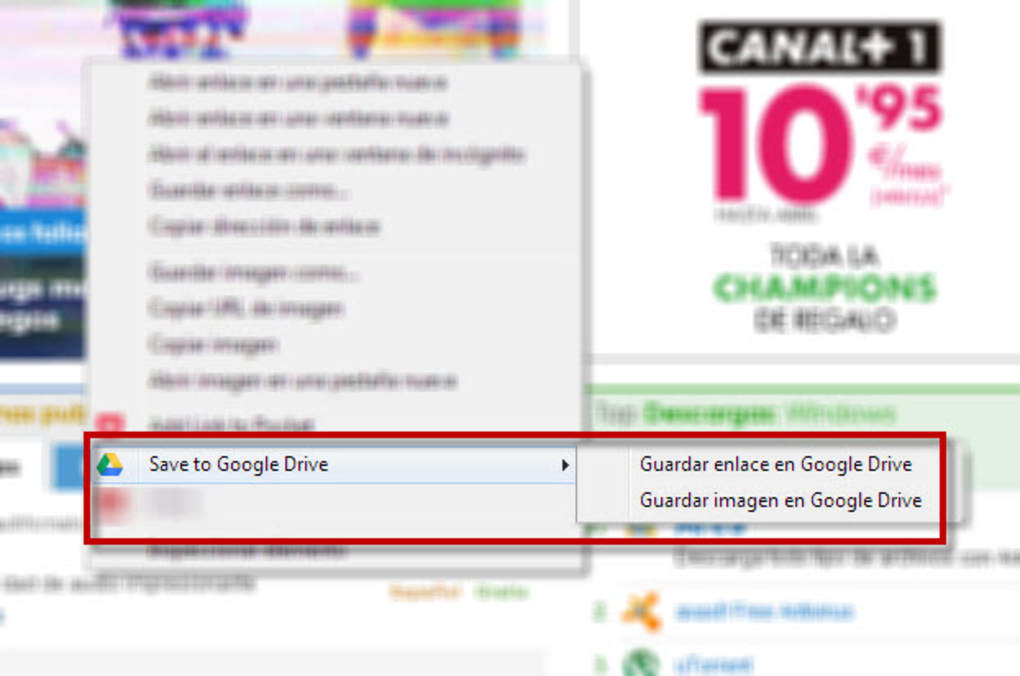
- Right‑click context menu for instant saving of images, PDFs, links, and HTML5 media.
- Automatic conversion of Microsoft Office (Word, Excel, PowerPoint) and CSV files to Google Docs, Sheets, or Slides.
- Customizable default folder and file naming conventions to keep Drive organized.
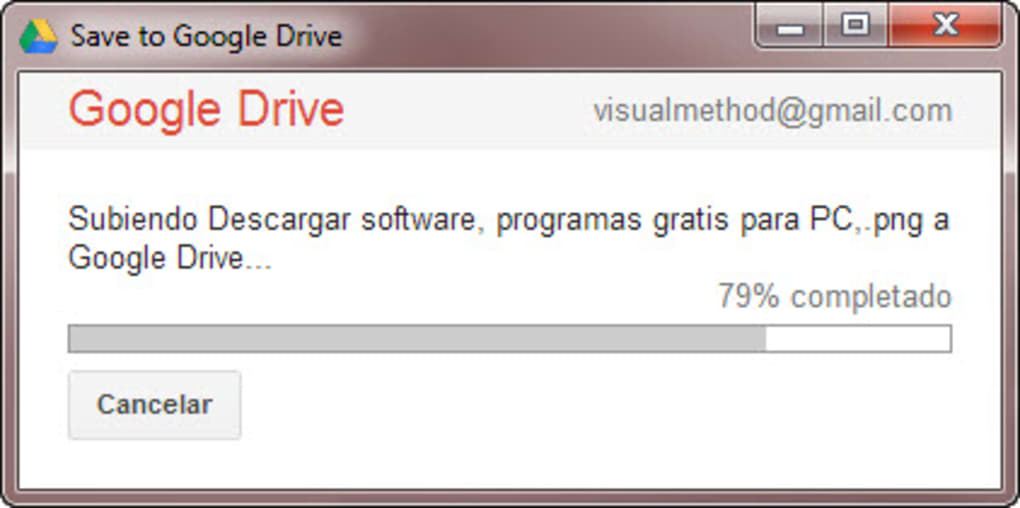
- Progress dialog that lets you rename, open, or view the saved file directly in Drive.
- Support for screen capture and full‑page PDF generation.
- Secure, OAuth‑based authentication—no extra passwords stored.
- Free of charge, with optional updates that improve performance and add minor features.
Installation, Setup & Everyday Usage
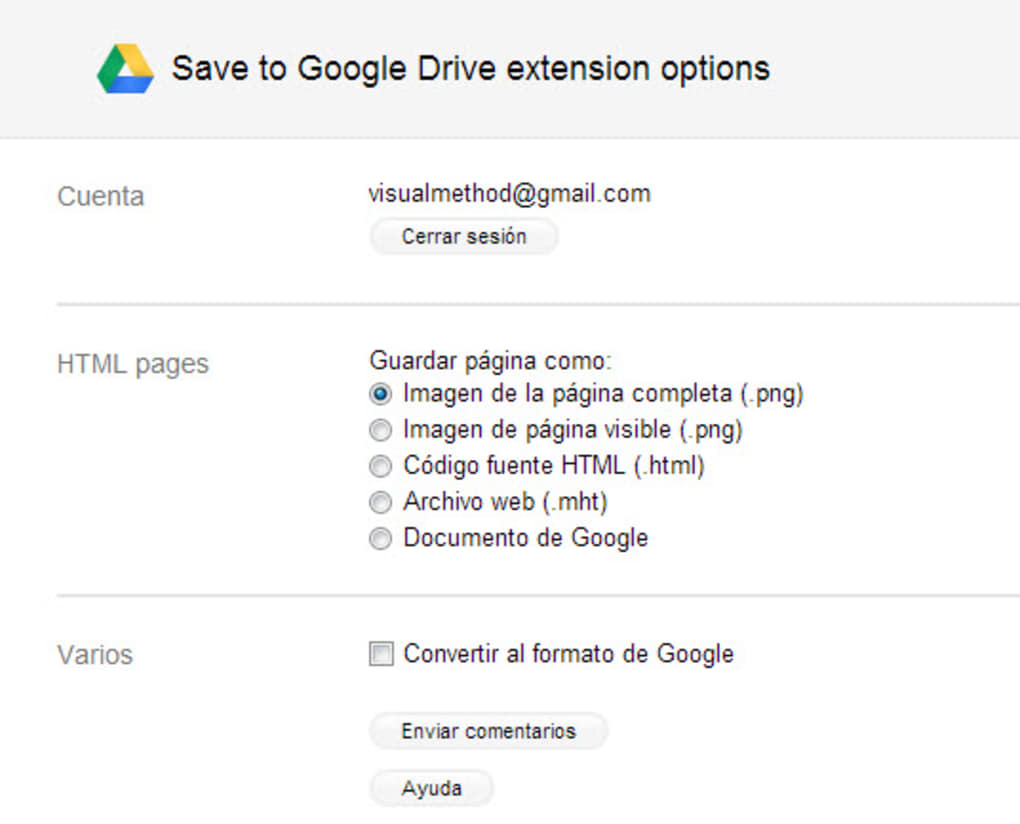
Getting started with Save to Google Drive is deliberately simple. First, visit the Chrome Web Store and click “Add to Chrome.” After a brief permission request (access to your Drive and the ability to read web page content), the extension installs in seconds. Once installed, you’ll notice a small Drive icon in the Chrome toolbar; clicking it opens the extension’s options page where you can define default save locations, file formats, and naming patterns (e.g., “{title}_{date}”). The options page also lets you toggle whether the “Save to Drive” button appears in the print dialog—a handy feature for users who prefer a minimalist toolbar.
Daily usage is intuitive. When you encounter a web page you want to archive, simply press Ctrl + P (or ⌘ + P on macOS) to open Chrome’s print window. From the “Destination” dropdown, select “Save to Google Drive.” Choose your preferred format—PDF, PNG, or raw HTML—and click “Save.” The file uploads instantly, and a small toast notification confirms success, offering a direct “Open in Drive” link. For images or documents embedded in a page, right‑click the element, choose “Save Google Drive,” and the file is saved with the same default naming rules. If you need a quick screenshot, use the extension’s built‑in capture tool (available via the toolbar icon) to select a region; the captured image is then stored in your chosen Drive folder.
The extension also shines when working with local files. Drag a Microsoft Office file onto the Chrome window, open the print dialog, and select “Save to Google Drive.” The extension automatically converts the file to the appropriate Google format, preserving most of the original layout and allowing collaborative editing immediately after upload. For developers or researchers handling large datasets, you can save CSV files directly to Google Sheets, enabling real‑time data analysis without manual imports. All these actions are performed over a secure HTTPS connection, ensuring that your data remains encrypted during transit.
Compatibility, Pros & Cons
Save to Google Drive is a browser‑based extension, so its compatibility hinges on the operating system’s support for Google Chrome (or Chromium‑based browsers such as Edge). It works flawlessly on Windows 10/11, macOS Monterey and later, Linux distributions with Chrome, as well as Chrome OS devices. Mobile Chrome browsers do not support extensions, so the tool is limited to desktop environments. Because the extension relies on Google’s OAuth flow, you must have a Google account with Drive enabled; personal, business, and educational accounts are all supported.
Pros
- Completely free with no hidden fees or subscription model.
- Seamlessly integrates into Chrome’s native print dialog, eliminating the need for separate software.
- Supports a wide range of file types, including PDFs, images, audio, video, and Office documents.
- Automatic conversion to Google Docs/Sheets/Slides enhances collaboration.
- Highly customizable default folders and naming conventions keep Drive tidy.
- Secure OAuth authentication ensures your credentials are never stored locally.
- Lightweight and updates automatically via the Chrome Web Store.
Cons
- Cannot capture chrome:// URLs or Chrome Web Store pages due to security restrictions.
- Only works on desktop browsers; no mobile or tablet support for extensions.
- Advanced formatting of converted Office files may occasionally lose complex layouts.
- Relies on an active internet connection; offline saving is not possible.
Overall Rating: 4.5/5 – Save to Google Drive provides a reliable, free alternative to the discontinued Cloud Print service while adding modern conversion and organization tools that make daily workflow smoother.
Frequently Asked Questions
Can I use Save to Google Drive on macOS?
Yes. The extension works in any desktop version of Google Chrome on macOS, including the latest Monterey and Ventura releases.
Is there a limit to how many files I can save?
The only limitation is your Google Drive storage quota. The extension does not impose additional caps.
Can I save a whole website or just individual pages?
Save to Google Drive handles individual pages and files. For full‑site archiving you would need a dedicated web‑crawling tool, but you can save each page you visit with one click.
What happens to files saved as PDFs? Can I edit them?
PDFs are stored as read‑only files in Drive. To edit, you can open them with Google Docs (which performs OCR) or convert them to a Google Docs format using the “Open with” menu.
Is my data secure when uploading through the extension?
Yes. The extension uses Google’s OAuth 2.0 flow, and all file transfers occur over HTTPS, ensuring encryption in transit. No passwords are stored locally.
Conclusion & Call to Action
In a world where cloud storage is the backbone of remote work, losing Cloud Print could have been a major setback. Save to Google Drive steps in as a well‑designed, free Chrome extension that not only restores the ability to print directly to Drive but also expands it with instant saving, format conversion, and smart organization tools. Its straightforward installation, seamless integration with the Chrome print dialog, and robust feature list make it a must‑have for anyone who lives in Google Drive. While it’s limited to desktop browsers and can’t capture internal Chrome pages, the pros far outweigh the cons for the majority of users.
Ready to boost your productivity and keep your files safely backed up? Download Save to Google Drive now and experience a smoother workflow without paying a dime. Once installed, take a few minutes to configure your default folder and naming scheme—then let the extension handle the rest. Your future self will thank you every time you need a quick PDF, an organized screenshot, or a converted Google Docs file.
Guides & Tutorials for Save to Google Drive
How to install Save to Google Drive
- Click the Preview / Download button above.
- Once redirected, accept the terms and click Install.
- Wait for the Save to Google Drive download to finish on your device.
How to use Save to Google Drive
This software is primarily used for its core features described above. Open the app after installation to explore its capabilities.
User Reviews for Save to Google Drive 0
No reviews found





